

Why Is My Website Not Showing on Google? 5 Checks, in Order

In short: If you’re asking “why is my website not showing on Google?”, work through five checks in this order: is the site indexed, is something blocking Google, can Google find your pages, is each page worth indexing, and is it really a ranking problem. The first check takes a minute and tells you which of the others apply. One possible cause is a single WordPress setting that adds a noindex tag to your pages. The checks are based on Google’s and WordPress’s own help pages, and the main tool you’ll use, Google Search Console, is free.
Prefer video? Watch the 3-minute walkthrough:
An example: the florist who can’t find their own site
This is an illustrative example, not a real business. A small florist in Singapore launched a new website three weeks ago. Today the owner searched for the shop’s name on Google. The results showed competitors, a directory and another florist nearby. The shop’s own site wasn’t there.
It’s tempting to change everything at once: new pages, new keywords, maybe paying someone for “SEO”. But the cause can be one ticked box. Checking in order means you find the actual problem before you spend time or money fixing something that isn’t broken. Most of the checks below are about indexing, the basics that come before any SEO work.
Check 1: Is your website indexed by Google at all?
Start with the quick test. In Google, search for site:yourdomain.com (with your own domain). If you see results pointing to your site, you’re in Google’s index.
Don’t treat a short or empty list as the final word, though. Google says a site: search doesn’t necessarily return every URL it has indexed. For the pages that matter most, such as your homepage and main service pages, use the URL Inspection tool in Google Search Console. It’s free to use.
Inspect a page and the tool gives you one of two answers:
- URL is on Google: the page is in Google’s index.
- URL is not on Google: it isn’t, and you need to find out why.
Under that, read two lines first: Crawl allowed? and Indexing allowed? A “No” on the first points to a robots.txt rule. A “No” on the second points to a noindex block. Either one means something is blocking Google, so go to check 2.
If the page is on Google but you still can’t find it in Google search results, jump to check 5.
Check 2: Is something blocking Google?
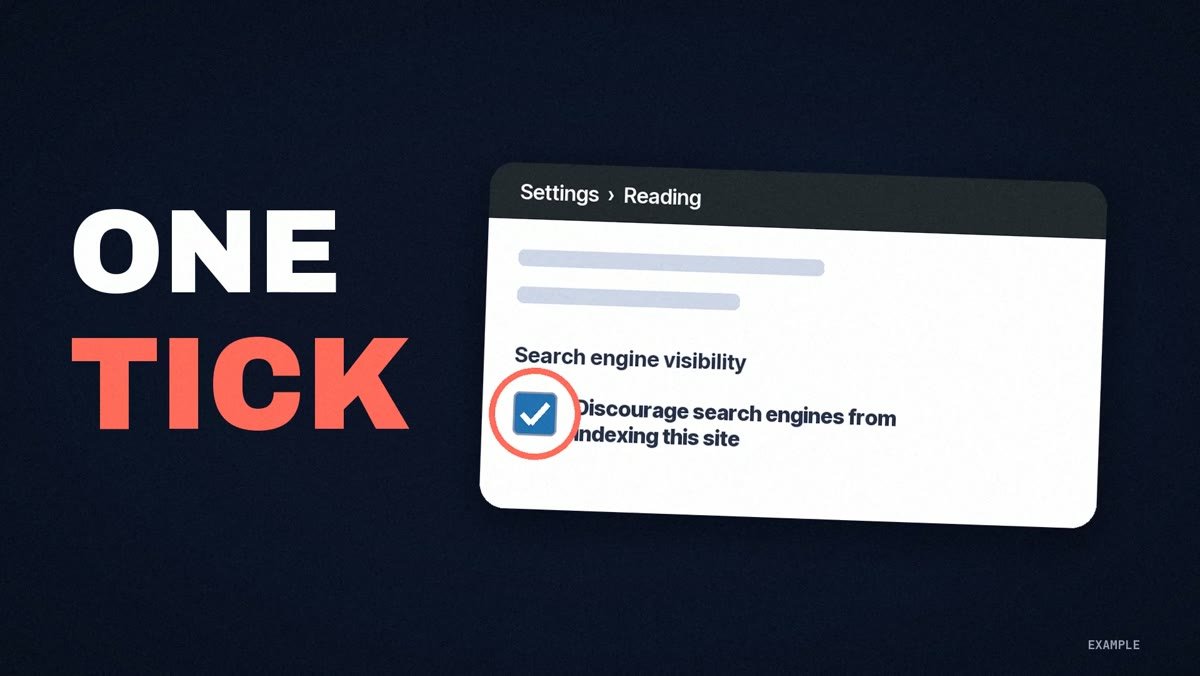
If your website isn’t indexed by Google, look first for something on your own site that stops Google from reading it. There are four places to look.
The WordPress setting. In your WordPress dashboard, go to Settings, then Reading. Find the box labelled “Discourage search engines from indexing this site”. When it’s ticked, WordPress adds a noindex robots meta tag to your pages, which tells search engines not to index them (this is how it has worked since WordPress 5.3). It’s easy to tick while a site is being built and forget at launch. If you want to be found, make sure it’s unticked, then save.
Your robots.txt file. Open yourdomain.com/robots.txt in a browser. This file controls which parts of your site crawlers can access. A line that reads Disallow: / blocks crawling of the whole site. If you didn’t put it there on purpose, ask whoever built your site to remove it.
Login walls. If a page needs a log-in to view it, Googlebot won’t crawl it. Google’s simple test is to make sure you can open your site in an incognito (private) browser window. If you land on a password page or a login form, that’s what Google gets too.
Firewalls and hosting. Google says crawling has to be allowed by any CDN or hosting infrastructure, not only by robots.txt. If you use a security plugin, a firewall or a CDN, check it isn’t blocking Google. The quickest way to see is the live test in URL Inspection, which shows whether Google can crawl the page.
Check 3: Can Google find your pages?
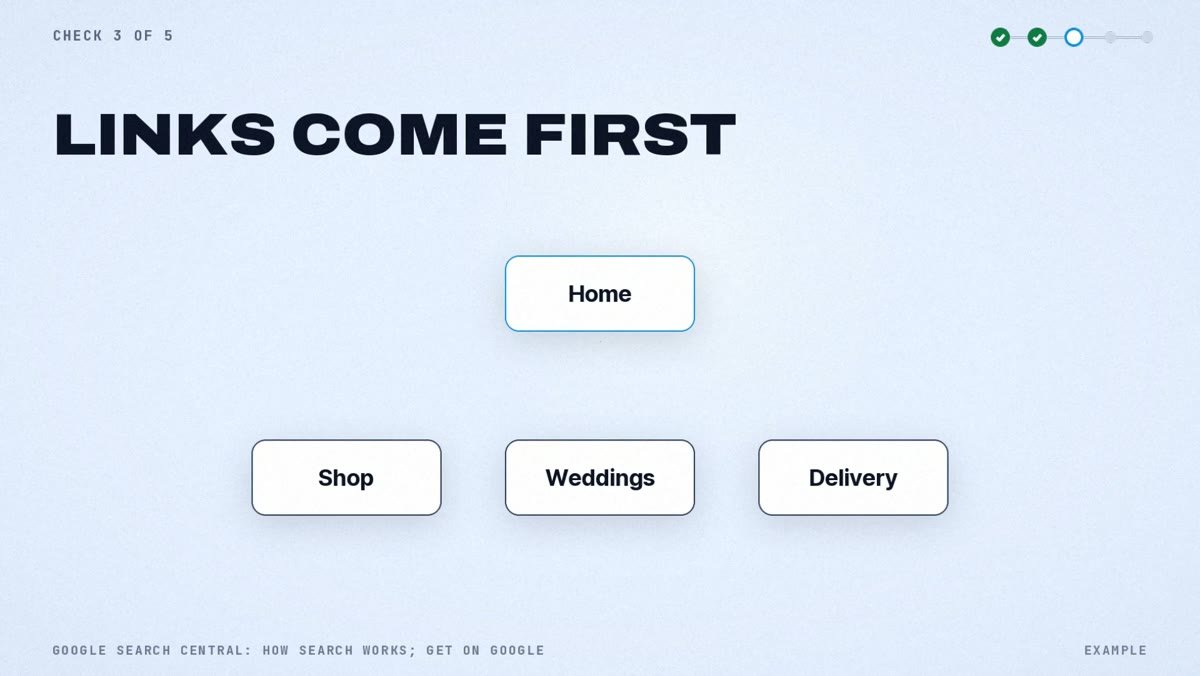
Once nothing is blocking Google, make your pages easy to find. You don’t need to submit every page by hand. Google says the vast majority of pages in Google search results aren’t manually submitted: it finds them by following links.
Do these three things, in this order:
- Link every important page from your menu or your homepage, so Google can reach it by following links.
- Submit your sitemap in the same tool. If your site runs on WordPress, Wix or Blogger, your CMS has likely made one already, so check for it before you build a new one.
- Request indexing for your homepage in URL Inspection. Do it once. Google says asking multiple times for the same URL won’t get it crawled any faster.
Then give it time. For a new site, Google’s pages give anywhere from a few days to a few weeks. Our florist, three weeks in, is at the long end of that range: worth checking, but not proof that something is broken.
Check 4: Is the page worth indexing?
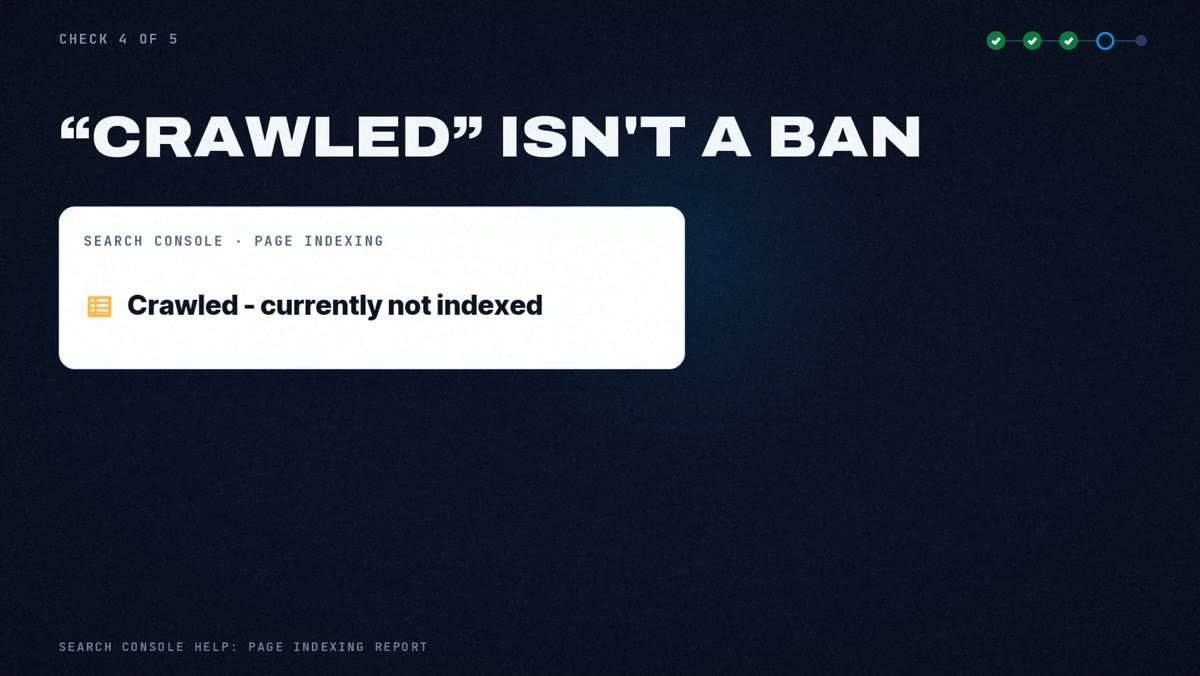
If Google is not indexing your site even after checks 2 and 3 pass, look at the pages themselves. Google says not every page it processes gets indexed, and low content quality is one of the reasons it lists.
You may see the status “Crawled – currently not indexed” in Search Console’s Page indexing report. That isn’t a ban. Google says such a page may or may not be indexed in the future.
What helps here is basic SEO: a page that answers what a customer came for. For a florist, that’s what you sell, rough prices, delivery and how to order. For a plumber or a cleaner, it’s the services, the areas you cover, how pricing works and how to book. A page that only says “quality service, contact us” gives a customer very little to go on.
Don’t pad pages to hit a word count, either. Google says it has no preferred word count. Write enough to answer the question, then stop.
Check 5: Indexed, but still not showing on Google?
Sometimes a website not showing on Google isn’t an indexing problem at all. Being indexed doesn’t guarantee that a page shows up.
Here’s a simple test we use. Search for your exact business name. Then search for what a new customer would type, such as “florist near me” or “flower delivery singapore”. If you appear for your name but not for the general search, Google has indexed you. You have a ranking problem, which is an SEO job rather than an indexing one, and that has a different fix.
The Performance report in the same tool shows this in numbers: impressions (how often you appeared in Google search results) and clicks. Impressions with few or no clicks mean Google is already showing you. The work now is ranking higher and earning the click, not getting indexed.
And if URL Inspection says a page is on Google but you can’t find it anywhere, Google’s advice is to check the Manual actions and Security issues reports in the same tool.
Why indexing matters for AI answers too
Getting indexed also decides whether you can appear in Google’s AI features. Google says there are no additional requirements to appear in AI Overviews, but a page must be indexed and eligible to be shown with a snippet. So checks 1 to 4 are also your entry ticket to AI Overviews. If that’s your next goal, our guide on how to optimize for AI Overviews covers what comes after.
Once Google can find you, a good next step is to see whether AI assistants recommend you. Our free AI visibility check asks ChatGPT, Gemini and Claude a question your customers might ask and shows whether your business is mentioned. If it isn’t, read how to get your local business recommended by AI tools.
FAQ
How do I get my website to appear on Google? Make sure nothing blocks Google (check 2). Then link your pages from your menu or homepage, submit your sitemap in Search Console, and request indexing for your homepage once. Google finds most pages through links, so you don’t have to submit each page yourself. For a new site, allow a few days to a few weeks.
Why is my website not popping up when I search for it? Run check 1 first. If site:yourdomain.com or URL Inspection shows your pages are on Google, you’re indexed and it’s more likely a ranking issue (check 5). If they’re not on Google, work through checks 2 to 4.
Why can’t Google load or crawl my website? Two things to rule out: a login or password wall, and a firewall, CDN or hosting setting that blocks crawlers. Open your site in an incognito window, then run the live test in URL Inspection to see whether Google can crawl it. If the site doesn’t load for ordinary visitors either, fix that with your host first.
How long does it take Google to index a new website? Google’s pages give anywhere from a few days to a few weeks for a new site. Requesting indexing again and again won’t speed it up.
Do I have to pay for Google Search Console? No. It’s free.
The 5 checks at a glance
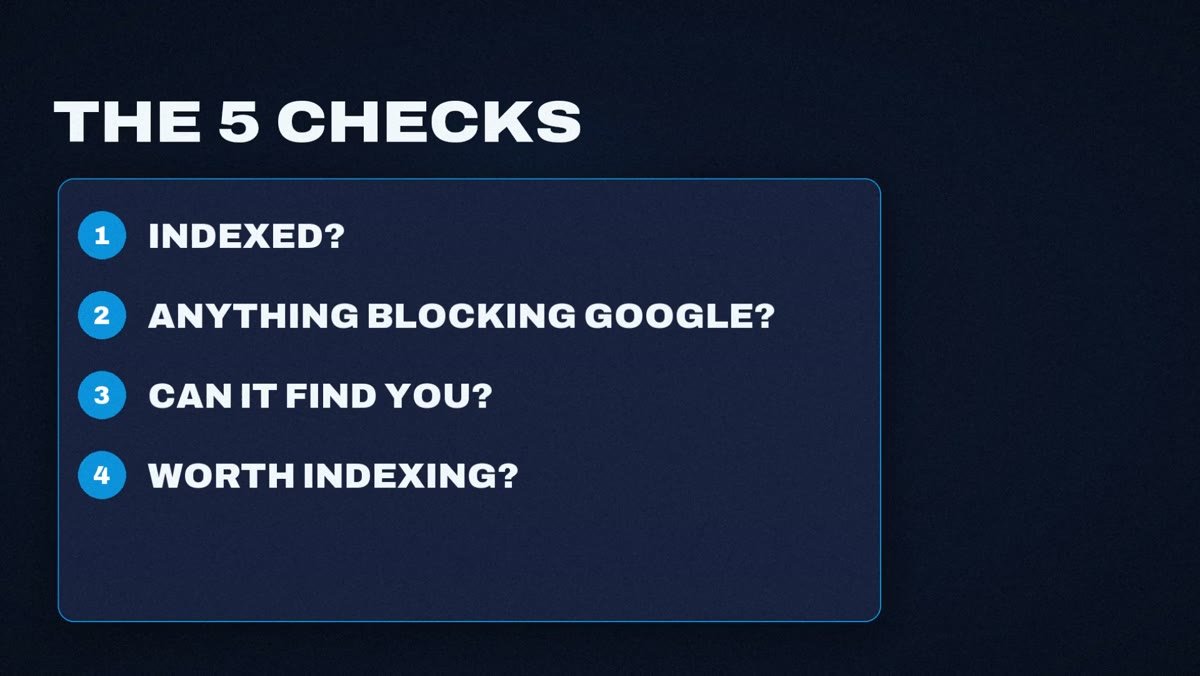
- Indexed? Search
site:yourdomain.com, then use URL Inspection for the pages that matter. - Blocked? Untick “Discourage search engines” in WordPress, look for
Disallow: /in robots.txt, check for login walls and firewalls. - Findable? Link every page, submit your sitemap, request indexing for your homepage once.
- Worth indexing? Answer what a customer actually needs. “Crawled – currently not indexed” isn’t a ban.
- Ranking? If you show up for your name but not for “florist near me”, it’s a ranking problem.
Trusted Google Search and Indexing Resources
- Google Search Central, Get your website on Google
- Google Search Central, site: search operator
- Search Console Help, URL Inspection tool
- Search Console Help, About Search Console
- WordPress.org Documentation, Settings Reading Screen
- Google Search Central, Introduction to robots.txt
- Google Search Central, Google Search technical requirements
- Google Search Central, AI features and your website
- Google Search Central, In-depth guide to how Google Search works
- Google Search Central, Learn about sitemaps
- Search Console Help, Sitemaps report
- Search Console Help, Page indexing report
- Google Search Central, Ask Google to recrawl your URLs
- Google Search Central, Creating helpful, reliable, people-first content
- Search Console Help, Performance report (Search results)